



Over 1.3 billion people worldwide live with disabilities. Ensuring your web applications are accessible isn't just about compliance; it's about creating inclusive digital spaces that work for everyone. Web accessibility isn't just a nice-to-have feature anymore—it's a fundamental requirement.
Known for its real-time testing capabilities and developer-friendly interface, Cypress has emerged as a powerful tool for ensuring web applications meet rigorous quality standards. When combined with accessibility testing tools, Cypress provides a foundation for building and maintaining accessible web applications that comply with standards like the European Accessibility Act (EAA) and Web Content Accessibility Guidelines (WCAG).
By integrating Cypress accessibility testing into your development workflow, you can automate the detection of accessibility issues early in the development cycle, saving time and resources while ensuring your applications remain accessible to all users.
What Is Accessibility Testing?
Accessibility testing is a specialized form of usability testing designed to ensure that web applications and websites are usable by people with disabilities, including visual, auditory, physical, speech, cognitive, and neurological disabilities. This type of testing verifies that your digital products comply with accessibility standards and guidelines while providing an equitable experience for all users.
Companies implementing accessibility testing strategies often benefit from:
Increased user engagement and satisfaction
Better market reach and customer base
Reduced legal risks
Types of Accessibility Testing
1. Automated Testing
Automated accessibility testing tools can quickly scan your application for common accessibility violations, making it an efficient first line of defense. These tools can identify issues such as:
Missing alt text for images
Insufficient color contrast
Improper heading hierarchy
Keyboard navigation issues
However, automated testing has limitations. While it can catch up to 40% of accessibility issues, it can't fully evaluate user experience or context-dependent accessibility requirements.
2. Manual Testing
Manual accessibility testing involves human testers systematically reviewing your application using the following:
Screen readers
Keyboard-only navigation
Various assistive technologies
Different devices and browsers
[How are manual and automated testing better together? Read more to find out].
This approach is crucial for identifying nuanced accessibility issues that automated tools might miss, such as:
Meaningful alt text quality
Logical reading order
Appropriate ARIA label usage
Context-dependent interactions
3. Hybrid Testing
The most effective approach combines both automated and manual testing methods. This hybrid strategy:
Uses automated tools for rapid, consistent testing of basic accessibility requirements
Employs manual testing for in-depth evaluation of user experience
Leverages human expertise for context-specific accessibility decisions
Provides comprehensive coverage of both technical and experiential accessibility aspects
Using Cypress For Accessibility Testing
Cypress has emerged as a leading framework for accessibility testing, offering several unique advantages that make it particularly well-suited for ensuring web accessibility compliance.
Key Features for Accessibility Testing
Real-Time Execution
Tests run directly in the browser
Immediate feedback on accessibility violations
Debug accessibility issues in real-time
Automatic Waiting
No need for artificial timeouts
Reliable testing of dynamic content
Consistent results across different page load times
Modern Architecture
Native access to all web APIs
Direct DOM manipulation capabilities
Support for modern web frameworks
Getting Started: Prerequisites for Cypress Accessibility Testing
If this is your first time using Cypress, please see our Cypress Testing Framework Tutorial.
Before diving into Cypress accessibility testing, ensure you have the following prerequisites in place:
Required Software and Tools
Node.js (version 18 or higher)
npm or yarn package manager
A modern code editor (VS Code recommended)
Git for version control
Chrome browser (a recent version of the chrome browser)
Knowledge Prerequisites
Basic understanding of JavaScript/TypeScript
Familiarity with web development concepts
Understanding of HTML and DOM structure
Basic knowledge of accessibility standards (WCAG)
Development Environment Setup
Create a new project directory
Initialize a new Node.js project:
mkdir cypress-accessibility-testing
cd cypress-accessibility-testing
npm init -y
Step-by-Step: Setting Up Cypress for Accessibility Testing
Installing Cypress
The following uses npm to install packages. In case you’d like to use yarn, please see this guide instead.
1. Install Cypress as a dev dependency:
npm install cypress --save-dev
2. Install required dependencies:
npm install cypress-axe axe-core --save-dev
npm install http-server --save-dev
3. Update your package.json to include the start script:
{
"scripts": {
"start": "http-server . -p 3000"
}
}
Creating a Sample Application
Create an index.html file in your project root:
<!DOCTYPE html>
<html lang="en">
<head>
    <meta charset="UTF-8">
    <meta name="viewport" content="width=device-width, initial-scale=1.0">
    <title>Cypress Accessibility Demo</title>
    <style>
        .card {
            border: 1px solid #ddd;
            padding: 20px;
            margin: 20px;
            max-width: 300px;
        }
    </style>
</head>
<body>
    <!-- Added header landmark -->
    <header role="banner">
        <nav role="navigation">
            <!-- Navigation content would go here -->
        </nav>
    </header>

    <!-- Added main landmark -->
    <main role="main">
        <div class="card">
            <h1>Welcome</h1>
            <img src="placeholder.jpg" alt="Welcome image for demonstration">
            <button style="background: #2b2b2b; color: #ffffff;">High Contrast Button</button>
        </div>
    </main>

    <!-- Added footer landmark -->
    <footer role="contentinfo">
        <!-- Footer content would go here -->
    </footer>
</body>
</html>
Setting Up Cypress
Use our guide to set up Cypress.
Sauce Labs can also seamlessly run tests on Cypress across different browsers. It supports most popular frameworks and has emulators, simulators, and real devices. You can get started using Cypress and Sauce Labs with our Cypress quickstart guide.
Make your apps more accessible in minutes
Configuring Cypress for Accessibility Testing
Configure the support file
(cypress/support/e2e.js):
// Import cypress-axe
import 'cypress-axe'
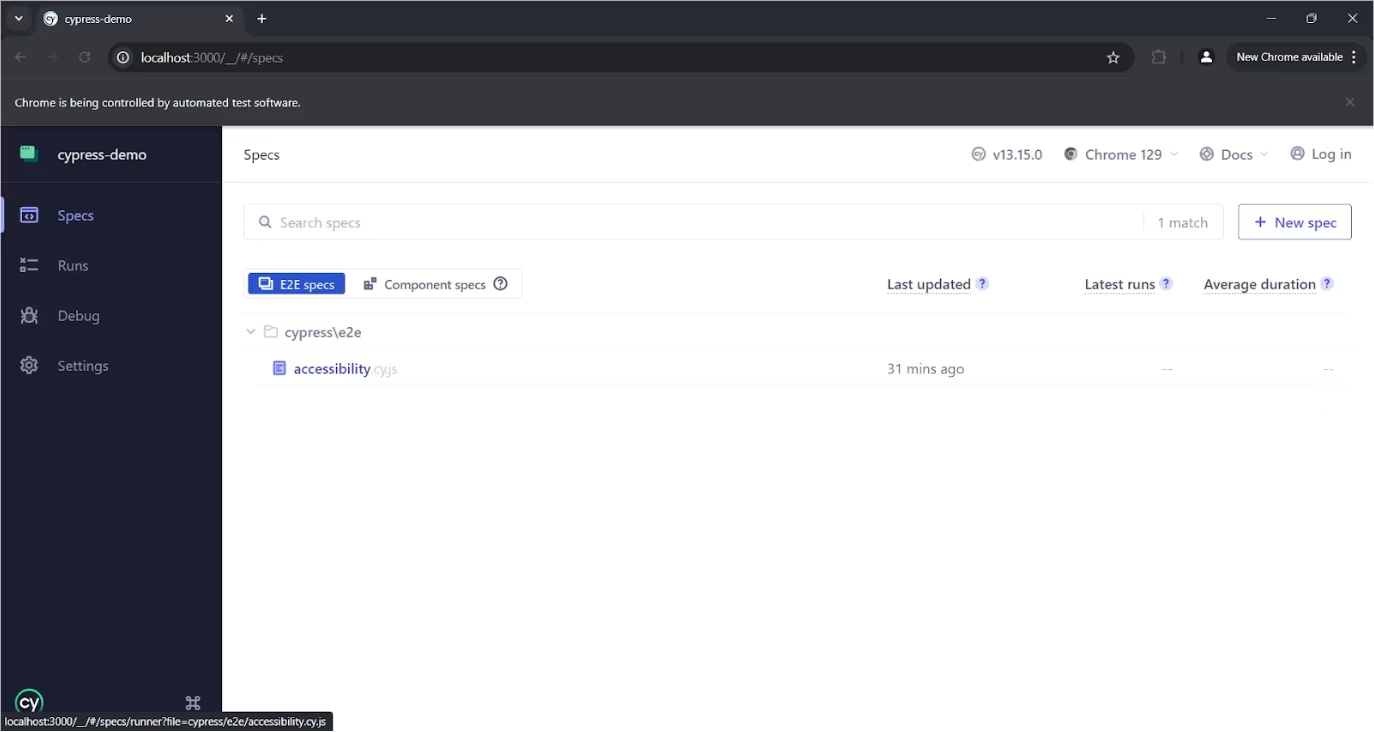
2. Back in Chrome, select “Create new spec”.
3. Name the file accessibility.cy.js and run the spec.
4. This is your first test file; you can edit it back in VC Code. You can use the following as a starting point.
describe('Accessibility Tests', () => {
  beforeEach(() => {
    // Visit our test page
    cy.visit('<http://localhost:3000>')
    // Inject the axe-core library
    cy.injectAxe()
  })

  it('should check for accessibility violations', () => {
    // Check for accessibility violations on the page
    cy.checkA11y()
  })

  it('should verify image alt attributes', () => {
    cy.get('img').each(($el) => {
      cy.wrap($el)
        .should('have.attr', 'alt')
        .and('not.be.empty')
    })
  })

  it('should verify color contrast', () => {
    cy.checkA11y(null, {
      runOnly: {
        type: 'rule',
        values: ['color-contrast']
      }
    })
  })
})
Running Your Tests
Start your application server:
npm start
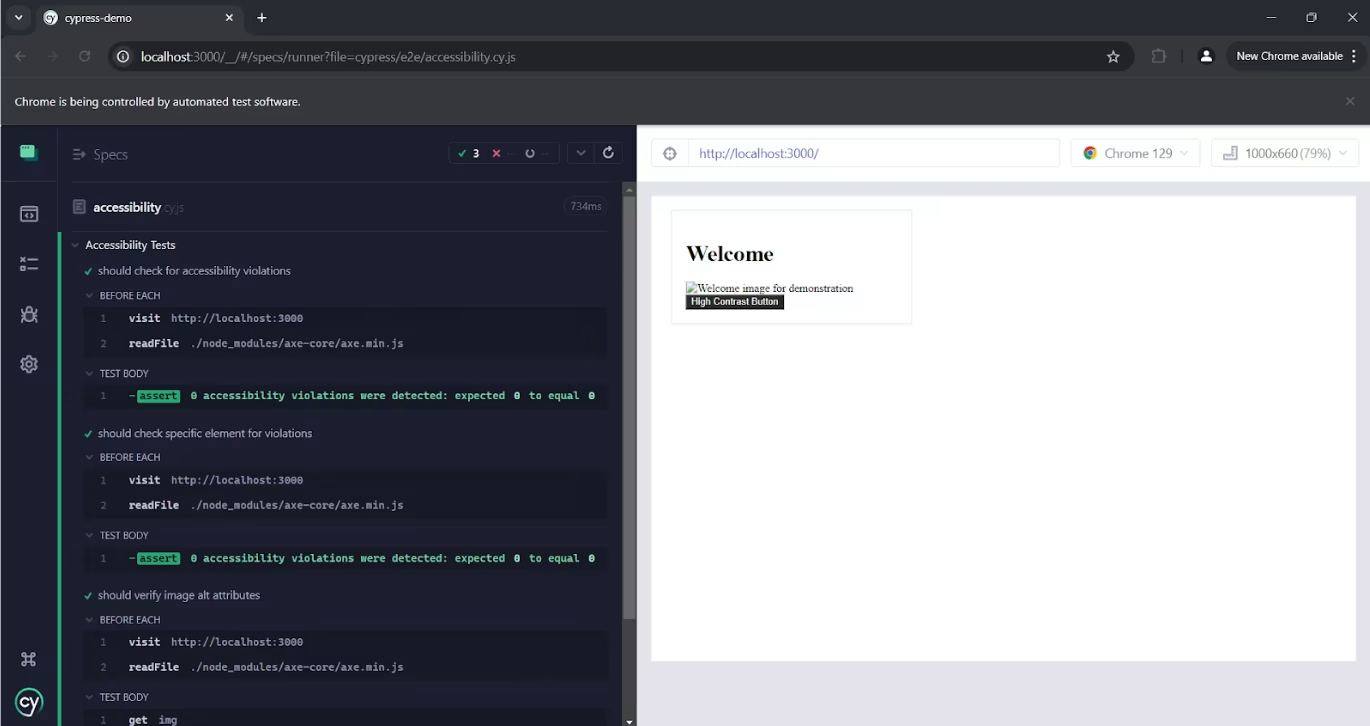
2. Back in Chrome, if you haven’t run the spec already, you can click on "accessibility.cy.js", under “Specs” in the left-hand tab, to run your tests.
3. You should see all of your tests pass
Common Accessibility Issues and How To Fix Them
Here are some common accessibility issues you might encounter and how to fix them:
Missing Landmarks
Error:
landmark-one-mainFix: Add
<main role="main"> to your contentEmpty Alt Text
Error:
empty-alt-attributeFix: Add meaningful alt text to images
Color Contrast
Error:
color-contrastFix: Ensure sufficient contrast between text and background colors
Also read: Bad Press, Litigation and Exclusion: Why Inclusive Design Must Be Accessible
Advanced Test Configuration
For more specific testing scenarios:
describe('Advanced Accessibility Checks', () => {
  beforeEach(() => {
    cy.visit('<http://localhost:3000>')
    cy.injectAxe()
  })

// Test specific sections
  it('should verify main content accessibility', () => {
    cy.checkA11y('main', {
      runOnly: {
        type: 'tag',
        values: ['wcag2a', 'wcag2aa']
      }
    })
  })

// Test keyboard navigation
  it('should support keyboard navigation', () => {
    cy.get('button')
      .focus()
      .should('have.focus')
      .type('{enter}')
  })
})
More In-Depth Accessibility Testing Techniques
1. Testing Complex UI Components
Modern web applications often include complex UI components like modals, carousels, and dynamic forms. Here's how to effectively test these components:
describe('Complex UI Component Accessibility Tests', () => {
  beforeEach(() => {
    cy.visit('/advanced-components')
    cy.injectAxe()
  })

  it('should maintain accessibility during modal interactions', () => {
    // Test modal accessibility lifecycle
    cy.get('[data-cy="open-modal"]').click()

    // Check focus trap
    cy.focused()
      .should('have.attr', 'role', 'dialog')

    // Verify escape key functionality
    cy.realPress('Escape')
    cy.get('[data-cy="modal"]')
      .should('not.be.visible')

    // Verify focus returns to trigger
    cy.focused()
      .should('have.attr', 'data-cy', 'open-modal')
  })

  it('should handle carousel accessibility', () => {
    const carouselTest = () => {
      cy.checkA11y('[data-cy="carousel"]', {
        rules: {
          'aria-hidden-focus': { enabled: true },
          'button-name': { enabled: true }
        }
      })

      // Test keyboard navigation
      cy.focused()
        .realPress('ArrowRight')
        .should('have.attr', 'aria-label')
    }

    cy.get('[data-cy="carousel"]')
      .focus()
      .then(carouselTest)
  })
})
2. Handling Dynamic Content
For dynamic content, implement observers and custom wait strategies
Cypress.Commands.add('waitForAccessibilityCheck', (selector, options = {}) => {
  const defaultOptions = {
    timeout: 10000,
    interval: 100
  }

  const finalOptions = { ...defaultOptions, ...options }

  return new Cypress.Promise((resolve, reject) => {
    const check = () => {
      cy.get(selector)
        .then($el => {
          if ($el.length) {
            cy.checkA11y(selector)
            resolve()
          } else if (finalOptions.timeout <= 0) {
            reject(new Error('Element never became available'))
          } else {
            setTimeout(() => {
              finalOptions.timeout -= finalOptions.interval
              check()
            }, finalOptions.interval)
          }
        })
    }
    check()
  })
})
Cypress Accessibility Testing Best Practices
Integrate accessibility testing early on in the development process
Include accessibility checks in your CI/CD pipeline
Run tests before each commit using git hooks
Set up automated testing schedules
Implement custom command for comprehensive testing
Document accessibility requirements in Cypress:
// cypress/fixtures/accessibility-requirements.json
{
  "components": {
    "Button": {
      "requirements": [
        "Must be keyboard accessible",
        "Must have sufficient color contrast",
        "Must have appropriate ARIA labels"
      ],
      "wcagCriteria": ["2.1.1", "1.4.3", "4.1.2"]
    }
  }
}
Ensure you're following WCAG and EAA Compliance. You can maintain a compliance checklist in your tests:
describe('WCAG 2.1 Compliance Tests', () => {
  it('should meet Level AA requirements', () => {
    cy.testAccessibility({
      runOnly: {
        type: 'tag',
        values: ['wcag2aa']
      }
    })
  })

  it('should meet EAA requirements', () => {
    cy.testAccessibility({
      rules: {
        'aria-required-attr': { enabled: true },
        'html-has-lang': { enabled: true },
        'landmark-one-main': { enabled: true }
      }
    })
  })
})
Let’s Make Your Apps More Accessible
Cypress accessibility testing represents a crucial step toward creating truly inclusive digital experiences. By combining automated testing with cloud-based solutions like Sauce Labs, teams can:
Detect and prevent accessibility issues early
Ensure consistent accessibility across platforms
Maintain compliance with evolving standards
Scale testing efforts efficiently
Ready to begin your accessibility testing journey? Start your free trial of Sauce Labs today and discover how easy it is to implement comprehensive accessibility testing with Cypress.
Get The Guide to European Accessibility Act Compliance

Stop letting QA be the bottleneck on AI-speed development.
Stop letting QA be the bottleneck on AI-speed development.